
Connecting a domain to WordPress depends on which WordPress you mean. WordPress.com is a hosted service run by Automattic; it accepts your domain either through its own nameservers or through an A record and a CNAME. Self-hosted WordPress (often called WordPress.org) is software running on a host you chose, so the domain points at that host's server like any other website. Both end with the same result: your domain in the address bar and the site's settings updated so WordPress generates links on it.
The difference matters because the wrong choice either moves your email DNS somewhere you did not intend, or leaves WordPress redirecting visitors back to the old address.
MailShrine Domains holds the domain and DNS. For WordPress.com you add their records in the MailShrine editor and skip the nameserver change. For self-hosted WordPress you add your host's A record. Either way your Business Email mailboxes are untouched because the MX records never move.
Real-life example: Tom's cycling blog
Tom Whitaker runs Whitaker Cycles, a bike repair shop in Manchester, and a blog that has grown into the shop's main marketing channel. The blog started on a free whitakercycles.wordpress.com address. He registered whitakercycles.co.uk on MailShrine for the shop email and now wants the blog on it too. WordPress.com's "Connect a domain" screen tells him to change nameservers to ns1.wordpress.com. He is wary because that would move his email DNS.
Tom's goals:
- Get the blog serving at
whitakercycles.co.ukwith HTTPS. - Keep
tom@whitakercycles.co.ukworking without re-entering records anywhere. - Make sure old
.wordpress.comlinks redirect rather than break.
Which WordPress are you on?
| WordPress.com (hosted) | Self-hosted WordPress | |
|---|---|---|
| Who runs the server | Automattic | Your hosting company |
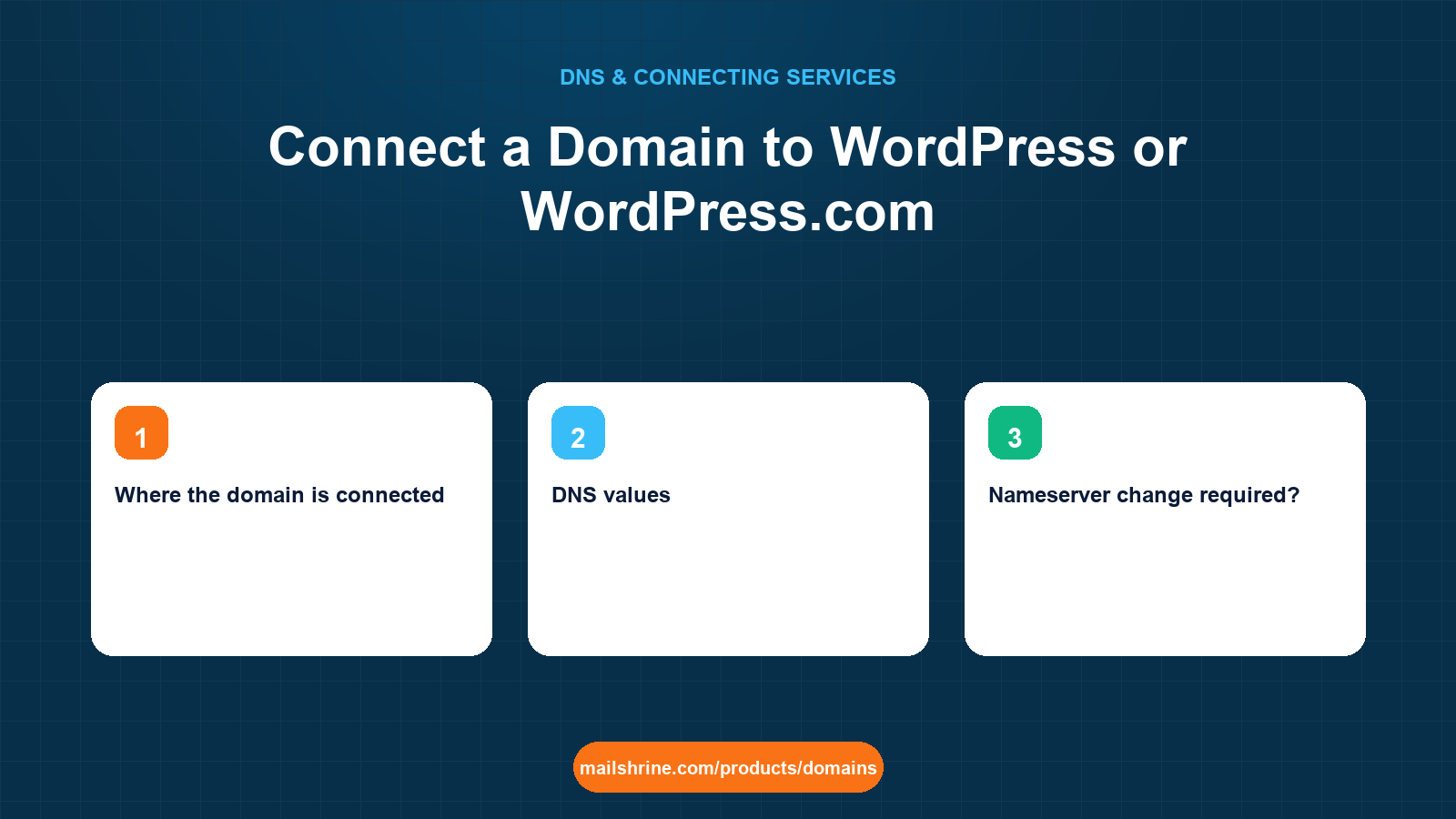
| Where the domain is connected | My Site → Upgrades → Domains | Host's control panel, then WordPress Settings → General |
| DNS values | A: 192.0.78.24 and 192.0.78.25; CNAME www → your site's .wordpress.com name | Host's IP or hostname |
| Nameserver change required? | No, records are enough (Automattic recommends their NS but accepts records) | No |
| Custom domain cost | Needs a paid WordPress.com plan | Included with hosting |
The WordPress.com IPs above are the ones Automattic documents for domains mapped by A record. Check the exact values in your own WordPress.com dashboard before adding them, because they can change.
Email while you switch
Both WordPress.com and most hosts will offer to sell you email on the domain during setup, and WordPress.com shows a prompt for its own mail product when a domain is mapped. You can decline all of it. Because the A and CNAME records described here do not touch MX, the mailboxes already running on your domain carry on exactly as before. If a host's domain wizard asks whether to "set up email records", choose the option that leaves existing records alone or skips email entirely; letting it write its own MX records is the one way these instructions can break mail.
What you need before you start
| You need | Why |
|---|---|
| For WordPress.com: a paid plan | Domain mapping is a paid feature; the free tier serves only the .wordpress.com address. |
| For self-hosted: the host's IP or alias | Your A or CNAME value. Found under domains in the hosting panel. |
| Admin access to the WordPress dashboard | You will update the site address after DNS resolves. |
| The MailShrine DNS editor open | Where the records go. |
Path A: WordPress.com
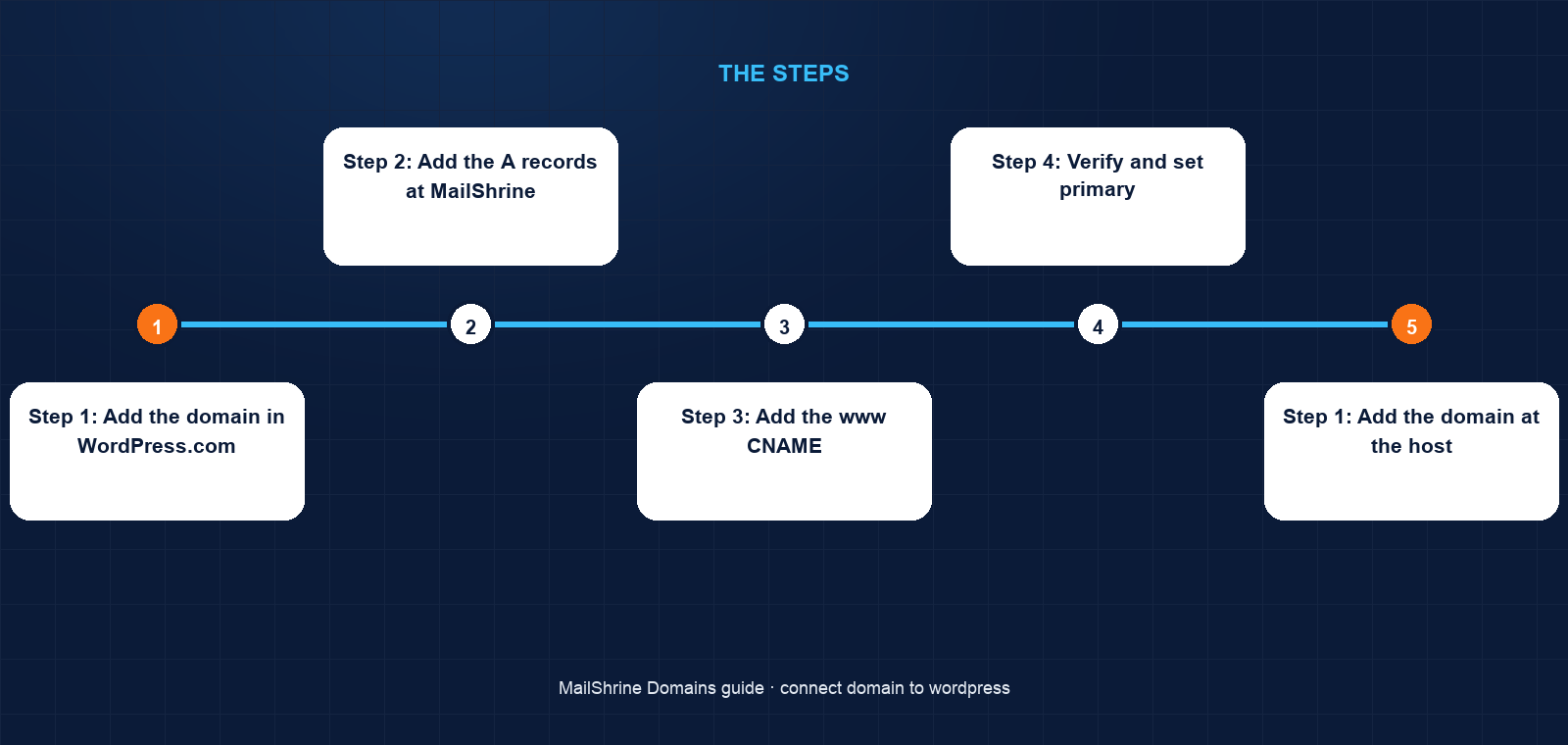
Step 1: Add the domain in WordPress.com
Go to My Site → Upgrades → Domains → Add a domain → Use a domain I own. Enter whitakercycles.co.uk. WordPress.com will offer two connection methods: change nameservers (its default) or "Advanced setup" with DNS records. Choose Advanced setup.
Step 2: Add the A records at MailShrine
Create two A records on @, one for each IP WordPress.com displays (currently 192.0.78.24 and 192.0.78.25). Two A records on the same name is normal; resolvers alternate between them.
Step 3: Add the www CNAME
Create a CNAME on www pointing to your site's existing address, for example whitakercycles.wordpress.com.
Step 4: Verify and set primary
Back in WordPress.com, click Verify. Once it sees the records, set the new domain as Primary site address. WordPress.com issues a certificate automatically and redirects the old .wordpress.com address to the new domain for as long as the mapping exists.
Path B: Self-hosted WordPress
Step 1: Add the domain at the host
In the hosting panel, add whitakercycles.co.uk and www to the account that holds the WordPress install. Note the IP or alias the host shows.
Step 2: Point DNS
At MailShrine, add an A record on @ with the host's IP and a CNAME on www with the host's alias (or a second A record if only an IP is given).
Step 3: Update WordPress itself
Once whitakercycles.co.uk loads the site, log into WordPress and go to Settings → General. Set both WordPress Address (URL) and Site Address (URL) to https://whitakercycles.co.uk. Save. You will be logged out and must log back in on the new address.
Step 4: Fix old links in content
Posts written on the old address still embed old image URLs. Use a search-and-replace plugin or WP-CLI (wp search-replace) to swap the old domain for the new one across the database.
Step 5: Issue HTTPS at the host
Most hosts offer a free certificate via Let's Encrypt once DNS points at them. Request it, then confirm WordPress's URLs use https://.
Tom's checklist
- Identified the blog is on WordPress.com, so Path A appliesCompleted
- Chose Advanced setup instead of changing nameserversCompleted
- Added two A records on
@with WordPress.com's IPsCompleted - Added CNAME on
wwwtowhitakercycles.wordpress.comCompleted - Clicked Verify and set the domain as primaryNot completed
- Confirmed email to
tom@still arrives after the changeNot completed
Common mistakes
Changing nameservers to WordPress.com because the first screen says so. Automattic's DNS then becomes authoritative and your MailShrine email records are no longer live. Use Advanced setup.
Skipping Settings → General on self-hosted WordPress. The site loads on the new domain but every link and image redirects to the old one.
Editing the Site Address before DNS resolves. You lock yourself out of the dashboard until the domain points at the server. Point DNS first.
Forgetting the old media URLs. Images break because they still reference the previous domain. Run a database search-and-replace.
Mapping a domain on the free WordPress.com tier. The option is shown but will not activate; a paid plan is required.
Check your work
Open https://whitakercycles.co.uk and https://www.whitakercycles.co.uk in a private window. Both should show the blog with a padlock, and one should redirect to the other. View the page source and confirm image URLs use the new domain. Then run dig MX whitakercycles.co.uk +short and confirm MailShrine's mail exchangers are still the answer.
FAQ
Do I need to change nameservers to use my domain with WordPress.com?
No. WordPress.com prefers its nameservers but documents an "Advanced setup" that uses A records and a CNAME. That keeps your DNS and email where they are.
Will the old .wordpress.com address stop working?
No. WordPress.com redirects it to your custom domain while the mapping is active, so bookmarks and search results keep resolving.
Can I use my domain with WordPress.com for free?
Not for a custom domain. Mapping requires a paid plan. The free plan serves your site only at its .wordpress.com address.
Why does self-hosted WordPress keep redirecting to the old URL?
Because WordPress stores its own address in the database. Update WordPress Address and Site Address under Settings → General after DNS resolves.
Does connecting a domain to WordPress affect my email?
Not when you add A and CNAME records. Only a nameserver change moves email DNS, and you can avoid that on both WordPress.com and self-hosted installs.
Next steps
- How to Point a Domain to a Website (Any Host) — the general pattern behind Path B.
- Nameservers Explained: When to Change Them and When Not To — why Advanced setup is the safer choice.
- Free SSL for Your Domain: How HTTPS Works With DNS — what happens when the host issues your certificate.
Citations & References
- Reference: WordPress.com Support: Connect a domain you already own
- Reference: WordPress.com Support: Map a domain with A records
- Reference: WordPress Documentation: Changing the Site URL
- Reference: Let's Encrypt: How It Works
Written by Elena V., migrations editor. Elena has moved hundreds of sites between addresses and knows that the DNS is the easy half.