
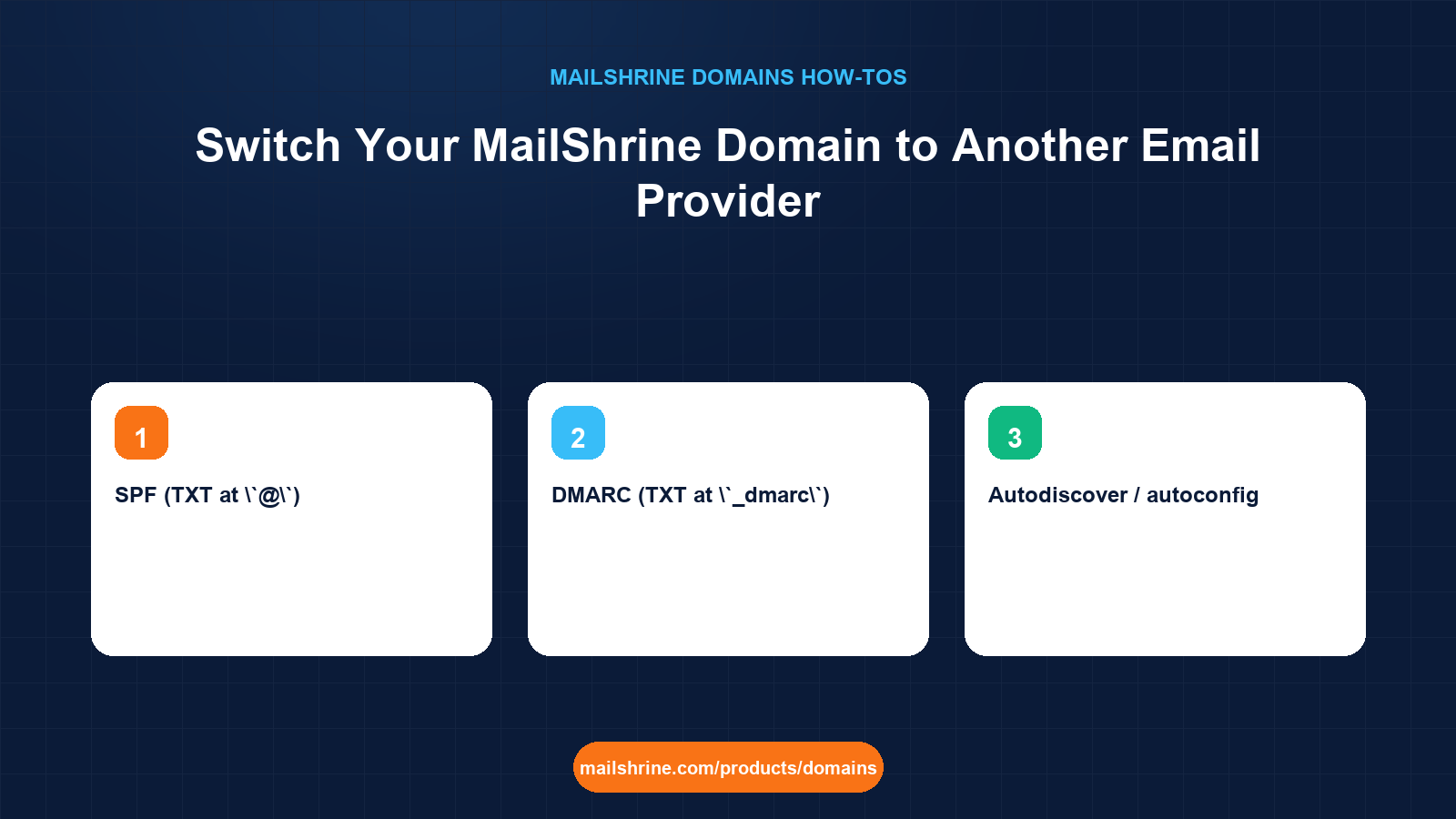
Switching email providers on a MailShrine domain means changing which mail servers the world delivers to when someone sends to you@yourdomain.com. That is decided by four DNS records: MX (where mail is delivered), SPF (who may send), DKIM (how outgoing mail is signed) and DMARC (what receivers do when SPF or DKIM fail). MailShrine writes all four for its own mailboxes at registration. If you would rather run the domain on Google Workspace or Microsoft 365 (Outlook), the dashboard has an email provider switch under My domains that rewrites the records as a set, so you never end up with one provider's MX and another's SPF.
This guide covers the switch itself, the records it writes for each provider, the two values you still have to fetch from Google or Microsoft (the verification token and the DKIM key), and the order that avoids lost mail.
MailShrine Domains does not lock you into Business Email. The two free mailboxes are included, but the domain is yours to point anywhere, and the DNS editor stays open for any extra records your provider asks for.
Real-life example: Leah's agency
Leah Brennan runs a six-person marketing agency in Manchester. She bought brennancreative.co.uk on MailShrine for the straightforward registration and the DNS, but her team already lives in Google Workspace with shared drives and Meet links going back three years. She wants the new domain's email in Workspace and she wants it done over a quiet weekend, with no client email bouncing on Monday.
Leah's goals this weekend:
- Make
hello@brennancreative.co.ukdeliver to Google Workspace, not to MailShrine's mailboxes. - Keep SPF, DKIM and DMARC correct so Gmail and Outlook recipients do not flag the agency's mail as spam.
- Keep the domain, its DNS and its renewal on MailShrine, where she already manages it.
What the email provider switch writes
| Record | MailShrine (default) | Google Workspace | Microsoft 365 / Outlook |
|---|---|---|---|
| MX | MailShrine exchangers | smtp.google.com (priority 1) | yourdomain-co-uk.mail.protection.outlook.com (priority 0) |
SPF (TXT at @) | v=spf1 include:<MailShrine> -all | v=spf1 include:_spf.google.com ~all | v=spf1 include:spf.protection.outlook.com -all |
| DKIM | Written automatically | CNAME or TXT at google._domainkey, key from Admin console | CNAMEs at selector1._domainkey and selector2._domainkey from Microsoft 365 admin |
DMARC (TXT at _dmarc) | v=DMARC1; p=quarantine; … | Kept, with your reporting address | Kept, with your reporting address |
| Autodiscover / autoconfig | MailShrine endpoints | Not required | CNAME autodiscover to autodiscover.outlook.com |
The switch writes the MX, SPF and provider-specific CNAMEs. The DKIM key is unique to your Workspace or Microsoft tenant and must be generated in the provider's admin console, so the switch leaves a placeholder and tells you where to paste it. DMARC is kept rather than replaced, because a DMARC policy is about your domain, not about the provider.
Why the order matters
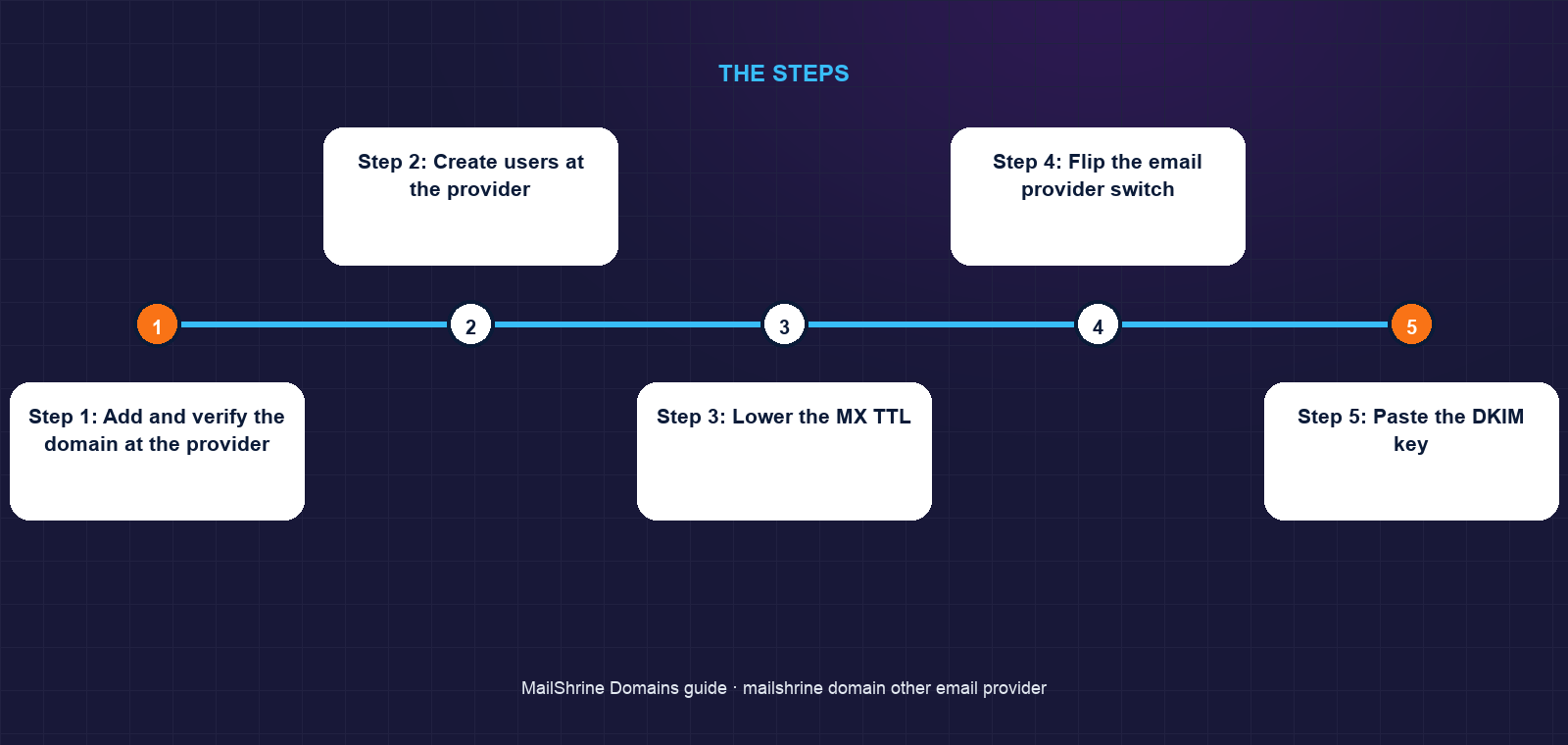
Mail arrives at whatever MX points to at the moment it is sent. If you switch MX before the Workspace users exist, Google receives mail for an address it does not know and bounces it. If you create the users and verify the domain first, then switch MX, every message lands in a mailbox on either side. The safe order is therefore:
- Add the domain to the new provider and verify ownership (a TXT record).
- Create the users or aliases there.
- Lower the TTL on the current MX record to 300.
- Flip the provider switch, which rewrites MX and SPF.
- Paste the DKIM key from the provider.
- Forward or export anything left in the MailShrine mailboxes.
Mail sent during the propagation window may go to either side, which is why step 6 exists.
What you need before you start
| You need | Why |
|---|---|
| An admin login to Google Workspace or Microsoft 365 | To add the domain, verify it, create users and generate DKIM |
| The provider's verification TXT token | Google and Microsoft both prove ownership with a TXT record at @ before they accept mail |
| The provider's DKIM key | Generated per tenant; MailShrine cannot write it for you |
| Users created on the new provider for every existing address | Mail to an unknown address bounces immediately |
| A quiet hour and a lowered MX TTL | So the switch propagates in minutes rather than up to the old TTL |
Step 1: Add and verify the domain at the provider
In the Google Admin console (Account → Domains → Manage domains) or the Microsoft 365 admin center (Settings → Domains), add brennancreative.co.uk. Both give you a TXT record. In MailShrine, open My domains → the domain → DNS, click Add record, type TXT, host @, and paste the token. Wait for dig +short TXT brennancreative.co.uk to show it, then click Verify at the provider.
Step 2: Create users at the provider
Create a user for every address that currently exists on the MailShrine mailboxes (hello@, leah@, and so on) plus any aliases. If you skip an address, mail to it bounces the moment MX changes.
Step 3: Lower the MX TTL
In the DNS editor, edit the existing MX records and set TTL to 300. Wait at least as long as the previous TTL (usually 3600 seconds) so caches expire. This is the step people skip and then wonder why mail still arrives at the old place two hours later.
Step 4: Flip the email provider switch
In My domains → the domain, find the Email provider control. Choose Google Workspace or Microsoft 365 (Outlook). Confirm. The switch replaces MX with the provider's exchangers, rewrites SPF to the provider's include, adds the Autodiscover CNAME for Microsoft, and keeps DMARC. The DNS editor now shows the new records and a placeholder for DKIM.
Step 5: Paste the DKIM key
Google: Admin console → Apps → Google Workspace → Gmail → Authenticate email → Generate new record; copy the TXT value and add it at host google._domainkey; then click Start authentication. Microsoft: in the Microsoft 365 Defender portal under Email authentication settings → DKIM, enable the domain and copy the two CNAME targets; add them at selector1._domainkey and selector2._domainkey. Without DKIM, your DMARC policy will fail on forwarded mail and your messages are more likely to land in spam.
Step 6: Drain the old mailboxes
For 24 hours, check the MailShrine webmail for anything that arrived during propagation. Export or forward it, then stop using those mailboxes. You can leave them in place; they simply receive nothing once MX points elsewhere.
Leah's checklist
- Added the domain in Google Admin and verified with the TXT record via the MailShrine DNS editorCompleted
- Created
hello@,leah@and four team users in WorkspaceCompleted - Lowered MX TTL to 300 and waited an hourCompleted
- Flipped the email provider switch to Google WorkspaceCompleted
- Generated DKIM in Gmail settings and pasted it at
google._domainkeyNot completed - Sent a test from Workspace to an Outlook.com address and checked the headers show
spf=passanddkim=passNot completed
Common mistakes
Changing MX by hand instead of using the switch. Hand-edited MX with MailShrine's SPF still in place means your outbound mail from Google fails SPF. The switch rewrites MX and SPF together.
Switching before the users exist. Google and Microsoft reject mail for unknown addresses immediately. Create every user and alias first.
Forgetting DKIM. The switch cannot generate your tenant's key. Mail without DKIM is more likely to be filtered, and DMARC with p=quarantine or p=reject will punish forwarded mail that only passed SPF.
Having two SPF records. SPF allows exactly one TXT record starting v=spf1 per domain (RFC 7208). The switch replaces the existing one. If you also paste the provider's SPF by hand, receivers treat the result as a permanent error.
Moving nameservers to the provider. Neither Google nor Microsoft need to host your DNS. Keep nameservers on MailShrine and keep the single DNS editor.
Check your work
Run dig +short MX brennancreative.co.uk; it should return the provider's exchangers only. dig +short TXT brennancreative.co.uk should show one SPF record with the provider's include. Send a message from the new provider to a Gmail or Outlook.com address, open the original headers, and look for spf=pass, dkim=pass and dmarc=pass. In MailShrine's My domains, the Email provider control should show the provider name, and the DNS editor should show no MailShrine MX records remaining.
FAQ
Do I lose the two free mailboxes if I switch?
They remain on your account but receive nothing once MX points to another provider. You can switch back to MailShrine at any time with the same control, and the records are rewritten again.
Can I use Google Workspace for some addresses and MailShrine for others?
Not in a supported way. MX applies to the whole domain. Split delivery is possible with routing rules at the provider, but it is fragile; use a subdomain for the second provider instead.
Will I lose email during the switch?
Not if you create the users first and lower the MX TTL before flipping. Mail in flight during the few minutes of propagation lands on one side or the other, which is why you drain the old mailboxes for a day.
Does the switch change my DMARC policy?
No. DMARC describes your domain's policy and reporting address and is independent of the provider. It is kept as is. Review it after DKIM is live so that p=quarantine does not punish mail that only passes SPF.
What about Zoho, Fastmail or another provider?
The switch has presets for Google Workspace and Microsoft 365. For other providers, add their MX, SPF and DKIM records manually in the DNS editor, deleting MailShrine's MX and replacing the single SPF record.
Next steps
- Add DNS Records in the MailShrine Dashboard — the editor you use for the verification TXT and the DKIM key.
- Transfer a Domain Into MailShrine — bring a domain already on Workspace here without touching its mail.
- Buy a Domain on MailShrine and Get Email in Minutes — where the default records came from.
Citations & References
- Reference: Google Workspace Admin Help: Set up MX records for Google Workspace
- Reference: Microsoft Learn: Add DNS records to connect your domain
- Reference: RFC 7208: Sender Policy Framework (one SPF record rule)
- Reference: RFC 7489: DMARC
Written by Marcus T., DNS and deliverability editor. Marcus writes about the records behind a domain so owners can connect anything without breaking their email.