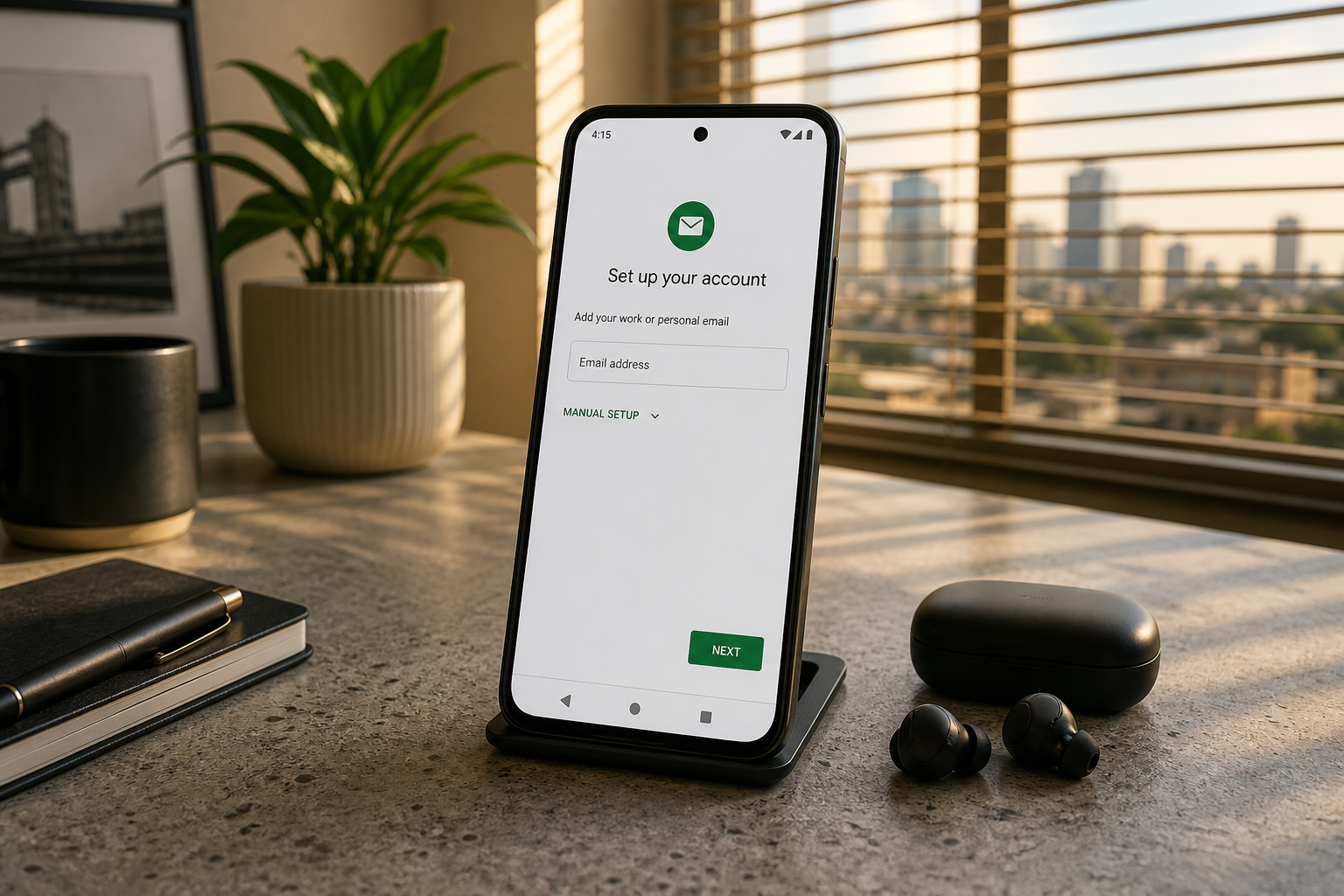
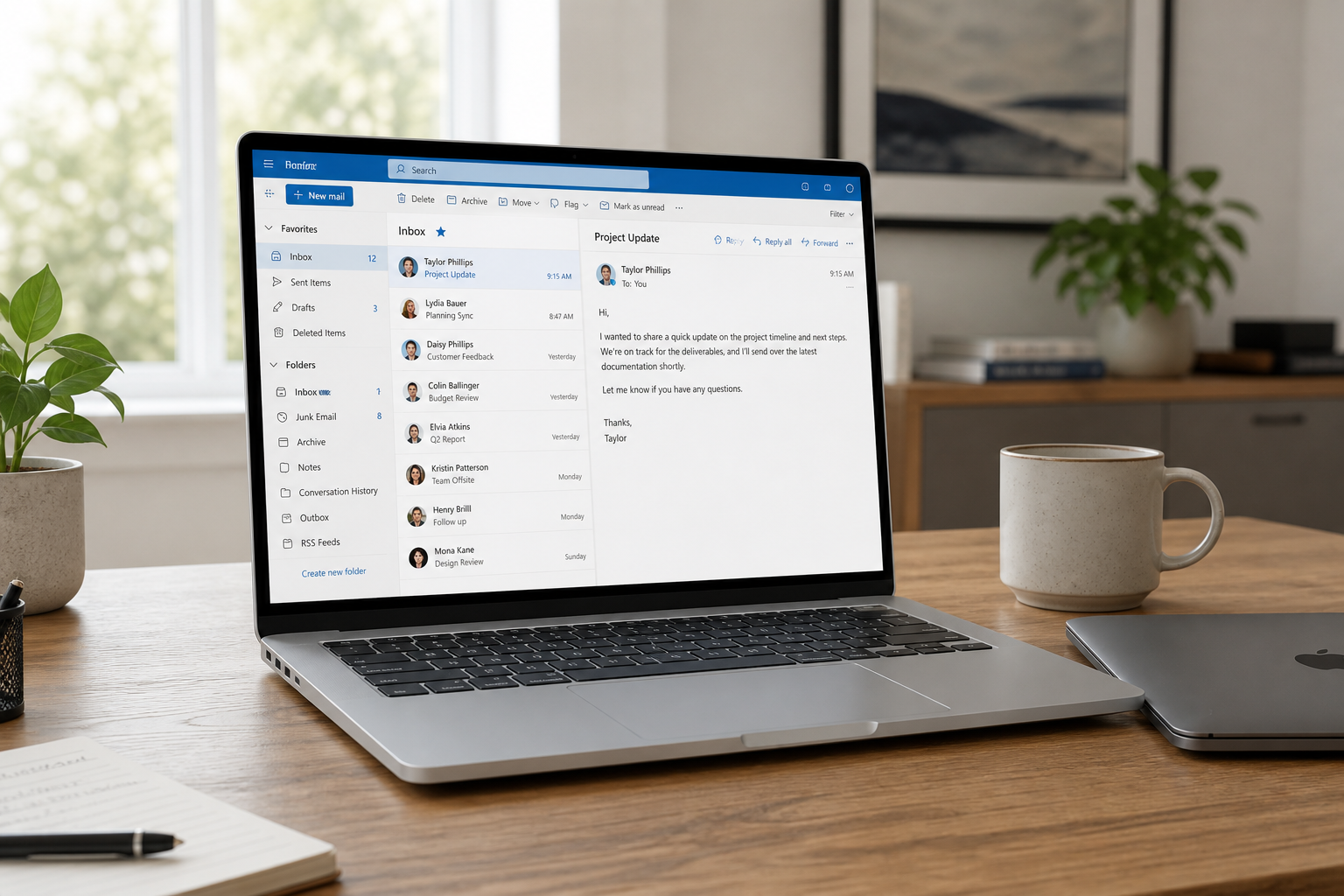
Outlook is still the default desktop inbox for many SMEs — especially teams that already live in Microsoft Word or share calendars casually. You do not need a Microsoft 365 mailbox to use Outlook as a client. With MailShrine you keep mail hosting on your domain and connect Outlook over IMAP + SMTP.
This walkthrough covers new Outlook and classic Outlook on Windows, plus Outlook for Mac. Before you start, copy your hosts and ports from MailShrine (IMAP & SMTP guide).
Real-life example: Harbor Freight Dispatch
Ngozi coordinates logistics for Harbor Freight Dispatch in Port Harcourt. Her address ngozi@harborfreightdispatch.com is live in MailShrine webmail. Drivers call her while she works from a Windows laptop in the yard office, so she wants Outlook open all day with offline drafts.
Goals:
- Add her MailShrine mailbox in Outlook without selecting “Microsoft 365” by accident.
- Send a test to a personal account and get a reply.
- Keep webmail as the backup if the laptop dies.
Before you open Outlook
| Ready? | Item |
|---|---|
| Domain Verified in MailShrine | Incomplete DNS = random inbound failures |
| Mailbox password known | Reset in Mailboxes if needed |
| IMAP host / port / encryption copied | From MailShrine client settings |
| SMTP host / port / encryption copied | Same panel — do not invent hostnames |
| Full email as username | e.g. ngozi@harborfreightdispatch.com |
Windows: new Outlook or Outlook (classic)
Microsoft ships more than one Outlook UI. The click names differ slightly; the manual IMAP idea is the same.
Path A — Add account wizard
- Open Outlook → File → Add Account (classic) or the Accounts / settings gear in newer builds.
- Enter your full business email address.
- If Outlook assumes Microsoft 365 / Exchange and fails, choose IMAP, Advanced, or Enter manually / Use your preferred provider.
- Paste IMAP host, port, and encryption from MailShrine.
- Paste SMTP host, port, and encryption from MailShrine.
- Username = full address. Password = mailbox password.
- Finish and wait for folder sync.
Path B — If Outlook only offers Microsoft accounts
- Close the Microsoft 365 prompt.
- Look for IMAP account, Other account, or Advanced setup.
- Never force Exchange Online settings for a MailShrine mailbox — that stack belongs to Microsoft-hosted tenants.
| Outlook prompt | What to do |
|---|---|
| “Work or school account” / 365 | Skip — use IMAP manual |
| Skip | |
| IMAP / Other | Continue with MailShrine values |
Mac: Outlook for Mac
- Outlook → Tools → Accounts (or Outlook → Settings → Accounts).
- + → Add Email Account (or New Account).
- Enter the business address. When auto-detect fails or offers Microsoft 365, choose IMAP.
- Incoming: paste MailShrine IMAP host + port + SSL/TLS as shown.
- Outgoing: paste MailShrine SMTP host + port; enable authentication with the same full address.
- Save. Confirm folders appear (Inbox, Sent, etc.).
First-hour checks in Outlook
- Send mail from Outlook to a personal Gmail/Yahoo address.
- Reply from that personal account to your business address.
- Confirm the reply appears in Outlook and MailShrine webmail (IMAP sync proof).
- Open Sent in both places after a minute — SMTP worked if the message is in Sent.
Recommended Outlook tweaks for business mail
| Setting | Why |
|---|---|
| Send from correct account | Multiple accounts → wrong From line looks unprofessional |
| Signature matches brand | See signature best practices |
| Cached / sync interval | Keep defaults unless IT asked you to change them |
| Do not enable POP | Breaks multi-device sync |
Ngozi’s checklist
- IMAP/SMTP copied from MailShrine (not a forum post)Completed
- Manual IMAP account created in OutlookCompleted
- Outbound test deliveredCompleted
- Inbound reply synced to Outlook + webmailCompleted
- Shared yard tablet set up later (same values)Not completed
Troubleshooting
| Symptom | Fix |
|---|---|
| “We couldn’t find a match” for 365 | Choose IMAP / Other; ignore Microsoft tenant flow |
| Send fails, receive works | Re-check SMTP host, port, and “My outgoing server requires authentication” |
| Constant password prompts | Retype password; check Caps Lock; reset mailbox password in MailShrine |
| Empty Inbox but webmail has mail | Wrong IMAP host or still on POP |
| SSL/TLS errors | Match encryption labels exactly to MailShrine |
Still stuck? Compare every character of the hosts to the IMAP & SMTP settings panel. One mistyped letter breaks SSL certificate host checks.
Outlook client vs Microsoft 365 suite
Using Outlook the app with MailShrine is not the same as buying Microsoft 365 seats with Exchange Online. If your team needs Teams, SharePoint, and co-authored Word in the cloud every day, a Microsoft suite can be the better buy. If you mainly need professional mailboxes on your domain plus a familiar desktop UI, MailShrine + Outlook IMAP is usually cheaper and enough.
Next steps
Citations & References
- Reference: Microsoft Support: Add an email account to Outlook
- Reference: Microsoft Support: POP, IMAP, and SMTP settings
- Reference: IETF RFC 3501: IMAP4rev1
Written by Elena M., Desktop Email Specialist. Elena walks Windows and Mac teams through Outlook IMAP so they stop fighting Microsoft 365 auto-detect.