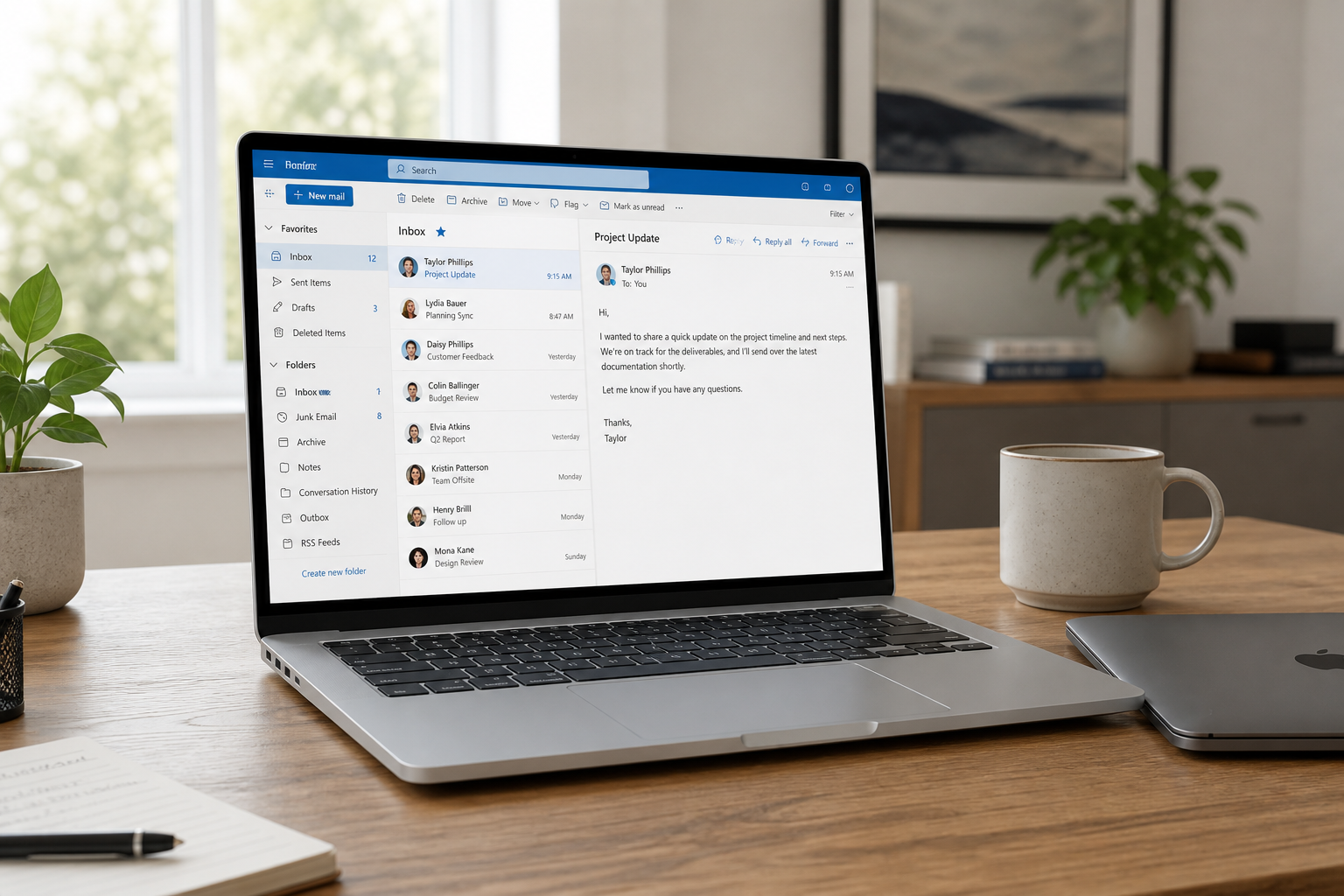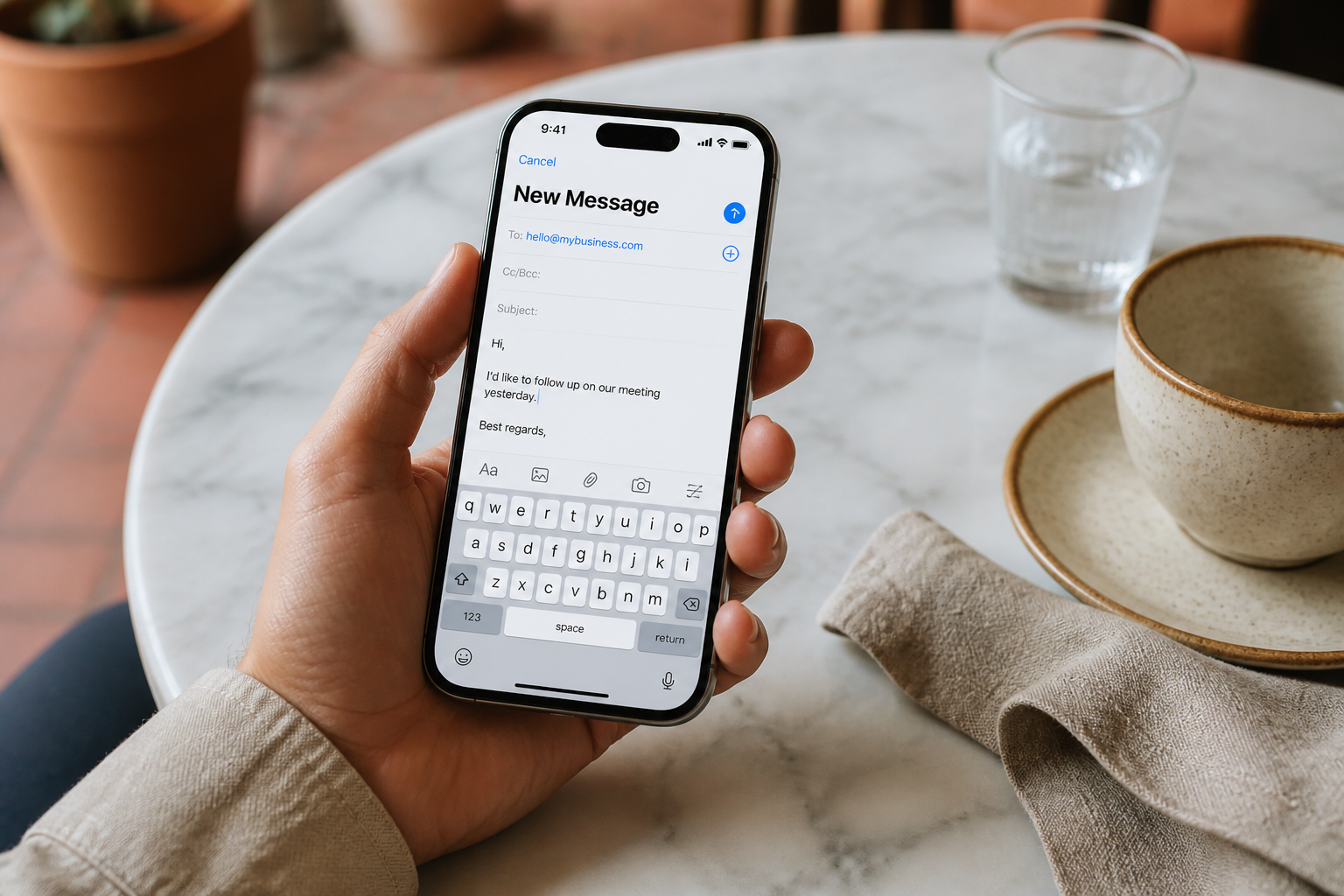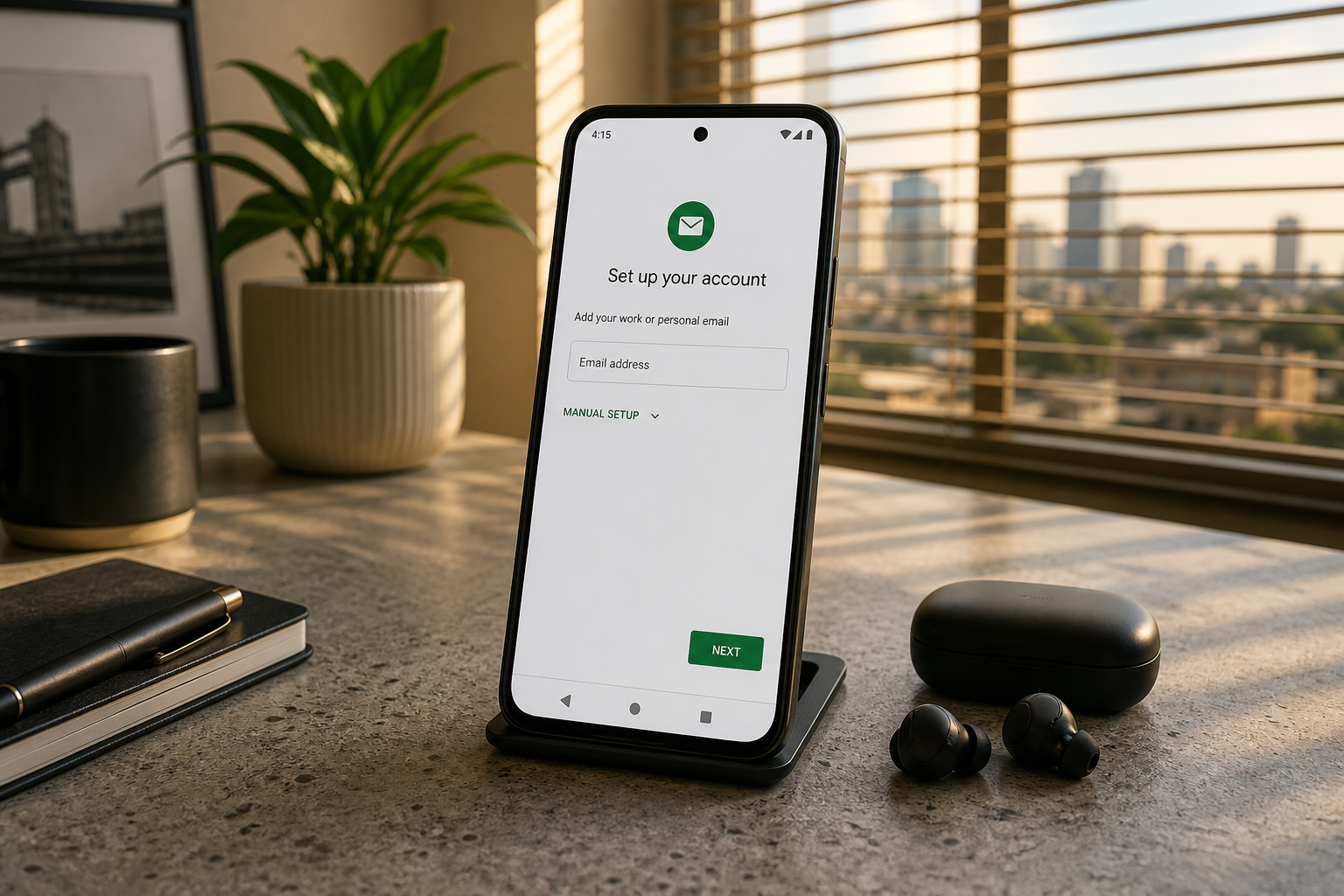
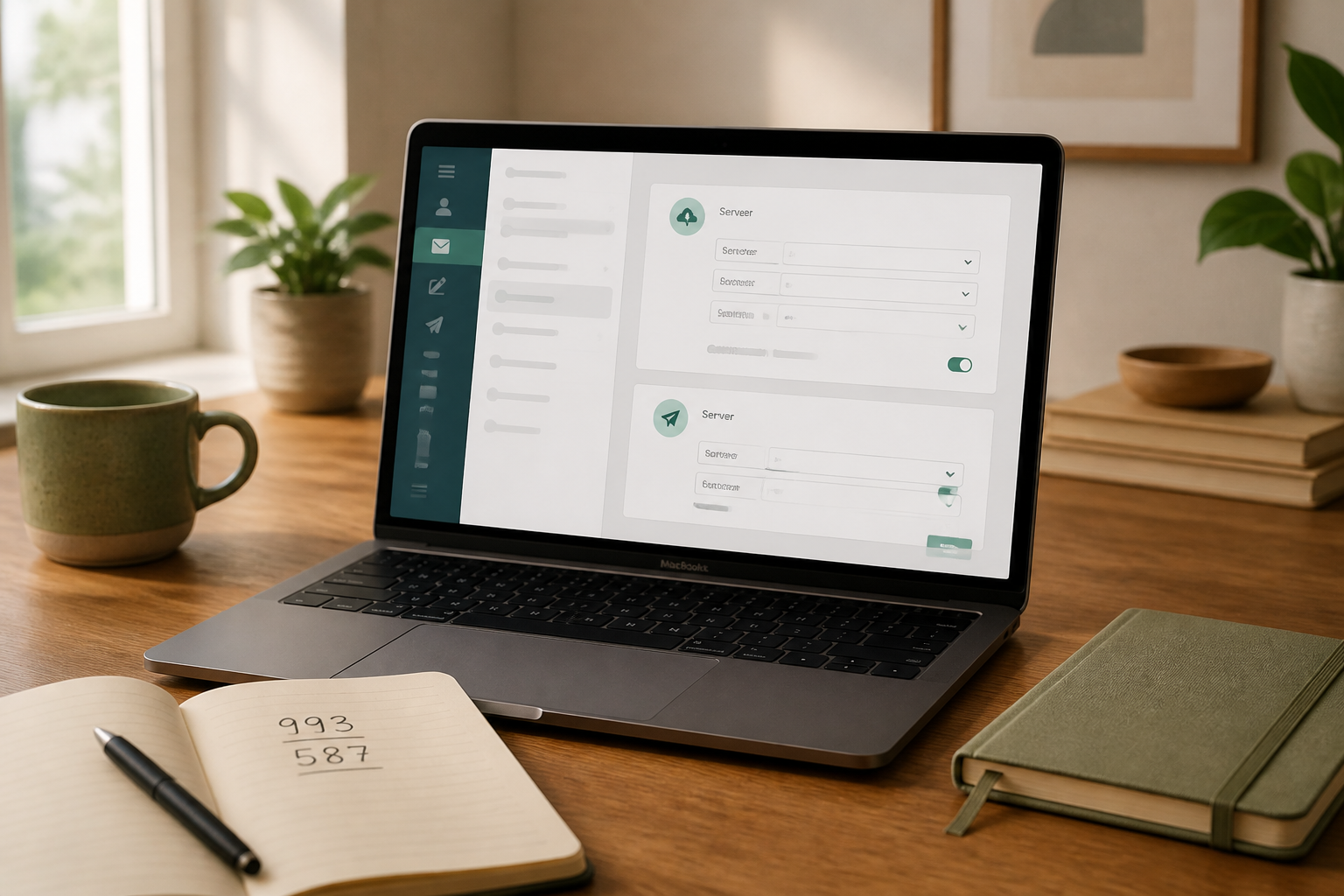
IMAP and SMTP are the two settings every desktop or phone mail app asks for when you add a custom business address. IMAP downloads and syncs mail into the app. SMTP is how the app sends mail. With MailShrine Business Email you copy both from your mailbox settings — you never need to guess hostnames.
This guide explains what each field means, which values to paste, and how to verify that Outlook, Apple Mail, and Android are talking to the right servers.
Real-life example: Northline Studio
Chidi runs Northline Studio, a two-person branding shop in Abuja. His domain mail (chidi@northline.studio) already works in MailShrine webmail. He wants the same inbox on his Windows PC at the office and his phone when he is on-site with clients.
Chidi’s checklist for one evening:
- Find IMAP / SMTP values inside MailShrine (not from a blog post).
- Add the account in Outlook with those values.
- Confirm send + receive before the next client review.
IMAP vs SMTP vs POP (quick table)
| Protocol | Direction | What it does | When to use |
|---|---|---|---|
| IMAP | Incoming | Syncs folders across devices | Default for business — use this |
| SMTP | Outgoing | Sends mail from the client | Always required for send |
| POP | Incoming | Downloads to one device, often deletes from server | Avoid for teams |
Prefer IMAP + SMTP. POP breaks multi-device sync and makes migration harder later.
Where to copy your MailShrine settings
- Sign in and open Business Email.
- Open Mailboxes → select the address you will connect.
- Find Client setup / IMAP & SMTP (wording may vary slightly in the UI).
- Copy exactly:
| Field | What to copy from MailShrine |
|---|---|
| IMAP server (host) | Incoming host string shown in settings |
| IMAP port | Port shown (commonly 993 with SSL/TLS) |
| IMAP encryption | SSL/TLS or the option MailShrine labels |
| SMTP server (host) | Outgoing host string shown in settings |
| SMTP port | Port shown (commonly 587 with STARTTLS, or 465 with SSL — use what MailShrine lists) |
| SMTP encryption | Match the product label |
| Username | Full email address (e.g. chidi@northline.studio) |
| Password | Mailbox password (or app password if shown) |
Do not invent hostnames. Values like mail.example.com in third-party tutorials are not yours. Paste only what MailShrine displays for your mailbox. Hosts can differ by region or product revision.Field-by-field meaning
Incoming (IMAP)
- Server / Host — the machine your app asks for new mail.
- Port + encryption — how the connection is secured. Wrong port/encryption pairs cause endless “cannot connect” errors.
- Username — almost always the full mailbox address, not a short login.
Outgoing (SMTP)
- Server / Host — where the client submits outbound messages.
- Authentication — turn on. Use the same full address + password unless MailShrine shows a dedicated SMTP user.
- “Same as incoming” — fine when the product says credentials match; still confirm the SMTP host field matches MailShrine’s SMTP line.
Common placeholder table (structure only)
Use this as a shape checklist while you fill from the product:
| Setting | Placeholder — replace from MailShrine |
|---|---|
| IMAP host | [copy IMAP host from MailShrine settings] |
| IMAP port | [copy IMAP port] |
| SMTP host | [copy SMTP host from MailShrine settings] |
| SMTP port | [copy SMTP port] |
| Username | you@yourdomain.com |
| Password | [your mailbox password] |
Industry defaults you will often see (verify against MailShrine before saving):
- IMAP 993 + SSL/TLS
- SMTP 587 + STARTTLS
If MailShrine shows different numbers, trust MailShrine.
Add the account in major clients (overview)
| Client | Guided path | Full walkthrough |
|---|---|---|
| Outlook (Windows / Mac) | Add account → manual IMAP | Outlook setup |
| iPhone / Apple Mail | Settings → Mail → Other → IMAP | iPhone & Apple Mail |
| Android (Gmail app) | Add account → Other → Personal IMAP | Android setup |
Always paste the MailShrine hosts first; client wizards that auto-detect Microsoft 365 or Google will fail for a custom host.
Chidi’s verification checklist
- Copied IMAP host / port / encryption from MailShrineCompleted
- Copied SMTP host / port / encryption from MailShrineCompleted
- Username = full email addressCompleted
- Sent a test from Outlook to personal GmailCompleted
- Replied from Gmail and saw it in Outlook and webmailCompleted
- Phone account added (next)Not completed
If send works but receive does not (or the reverse), re-check only the failing direction’s host/port/encryption — do not change both at once.
Troubleshooting table
| Symptom | Likely cause | Fix |
|---|---|---|
| Cannot connect on incoming | Wrong IMAP host or port | Re-copy IMAP line from MailShrine |
| Can receive, cannot send | Wrong SMTP host, auth off, or blocked port | Enable SMTP auth; match MailShrine SMTP port |
| Login failed | Typo in password or username | Use full address; reset mailbox password in MailShrine if needed |
| SSL error | Encryption mismatch | Match SSL/TLS vs STARTTLS to product labels |
| Duplicate copies of mail | POP used by accident | Remove POP account; re-add as IMAP |
What IMAP/SMTP do **not** replace
Client settings do not replace DNS. If MailShrine domain status is not Verified, inbound mail may never arrive no matter how perfect Outlook looks. Finish setup and MX/auth first (MX explained).
Next steps
Citations & References
- Reference: IETF RFC 3501: IMAP4rev1
- Reference: IETF RFC 5321: Simple Mail Transfer Protocol
- Reference: Google: Email sender guidelines
Written by Daniel K., Email Client Setup Specialist. Daniel helps SMEs paste the right IMAP and SMTP values so Outlook and phone apps stay in sync with MailShrine webmail.