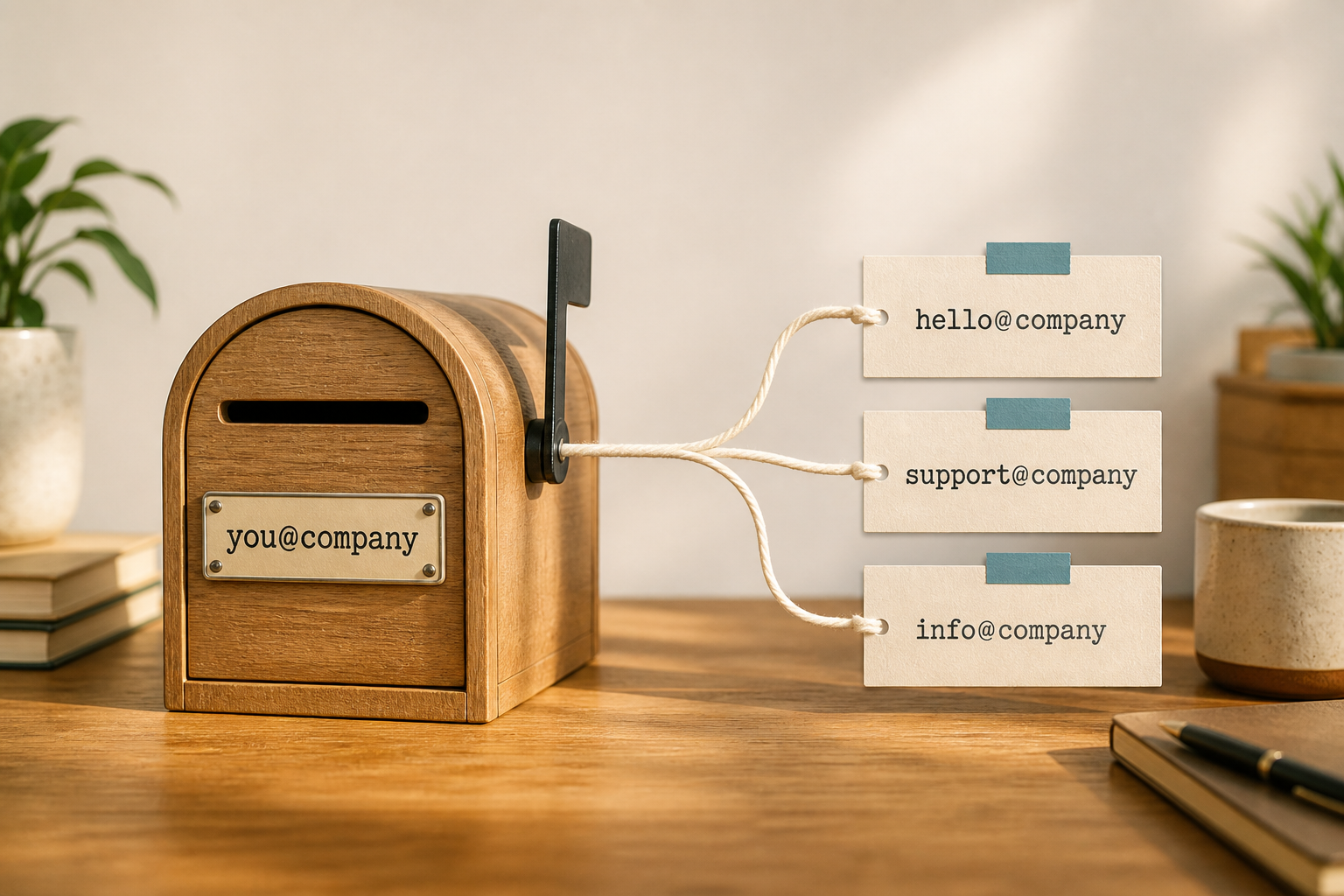

A shared mailbox (or shared access pattern) lets more than one person work the same role inbox — support@, orders@, hello@ — without pretending one human password is a “team plan.” On MailShrine, solo founders often start on Free with 2 mailboxes + 2 aliases. Shared mailbox invites (Team access) are on Team and above.
This guide separates shared role address, shared mailbox, alias into one owner, and password sharing (avoid that last one).
Real-life example: Pedal & Spoke
Ife and Kemi run a bicycle repair shop in Abuja. Customers write support@pedalandspoke.ng. While Ife is on service calls, Kemi should clear tickets from the front desk. One password in WhatsApp was their first “solution.” It broke the moment Kemi left for the weekend — and it was a security hole. They moved to a proper shared-access model on a team-capable plan.
Four patterns compared
| Pattern | How it works | Good for | Risk |
|---|---|---|---|
| Alias → owner mailbox | support@ delivers to ife@ | Solo Free users | Second person still needs owner login |
| Dedicated role mailbox | True support@ seat; grant delegates | 2+ people on one queue | Costs a mailbox |
| Full suite shared mailbox | Microsoft 365 / Google shared inbox features | Orgs already in that suite | Overkill (and pricey) if you only need email |
| Password sharing | Everyone logs in as one user | Never | Audit, 2FA, NDPR, and “who sent that?” |
MailShrine wins when you want email-focused seats without buying Google Workspace Docs/Drive just to share support@. If you already live in Outlook + Teams + SharePoint, Microsoft’s native shared mailbox may fit better.
Free plan reality check
MailShrine Free = 2 mailboxes + 2 aliases.
| Team size | Practical approach |
|---|---|
| 1 person | Aliases for hello@ / support@ into the founder mailbox |
| Founder + occasional helper | Upgrade: role mailbox or paid seats — don’t share Free password |
| Front desk + techs | Dedicated role mailbox + individual people mailboxes |
Alias vs seat refresher: Alias vs mailbox. Standing up roles: hello@ and support@.
Step 1: Decide who must read the role address
List humans, not titles. If only one name appears, stay on Free aliases. If two+ names appear daily, budget a shared pattern.
Step 2: Stop password sharing today
Rotate the owner password, enable 2FA on the owner seat, and move helpers off the shared login.
Step 3: Pick the access model
- Still solo → keep aliases.
- Two people, light volume → one role mailbox both can open via product share/delegate tools.
- High volume CX → role mailbox + clear tags or labels so agents don’t double-reply.
Step 4: Set reply ownership rules
Agree in writing:
- Who owns first reply SLA
- When to escalate to a personal mailbox
- Signature to use on the shared address
- After-hours coverage
Step 5: Test devices and IMAP
Confirm each permitted user can open the shared inbox on webmail and phone without the owner password. Client help lives under Getting Started and Clients & Devices guides.
Checklist
- Named people who need accessCompleted
- Password sharing stoppedCompleted
- Alias vs mailbox chosen intentionallyCompleted
- SLA / signature rules writtenCompleted
- Free users know upgrade triggersNot completed
Common mistakes
- Calling an alias a “shared mailbox” — helpers still need a seat or formal share.
- Putting banking and customer tickets in the same shared identity.
- Enabling catch-all so nobody has to create addresses (catch-all).
- Staying on Free after the second full-time teammate arrives.
Next steps
Citations & References
- Reference: Microsoft: About shared mailboxes
- Reference: Google Workspace: Collaborative Inbox
- Reference: Google: Email sender guidelines
Written by Ben A., Business Email Specialist. Ben helps small teams replace shared passwords with honest access models that still feel lightweight.