
How MailShrine is priced today (updated October 2026): MailShrine is an email suite, not a single flat-fee product. Live: Email Marketing, Business Email, AI Email Lead Generator, Email Sanitization (200 credits per month, refilled every month), and Developer API — Live. In development: Email Automation only. Email Marketing, Email Lead Generator, and Developer API use pay-as-you-go credits (1 credit = 1 email, harvested lead, or API send), with monthly Email Marketing options. Stored contacts do not raise the bill. Business Email is billed by mailbox. Products and plans are differentiated — not every feature lives on every plan. Confirm live packs on Pricing.
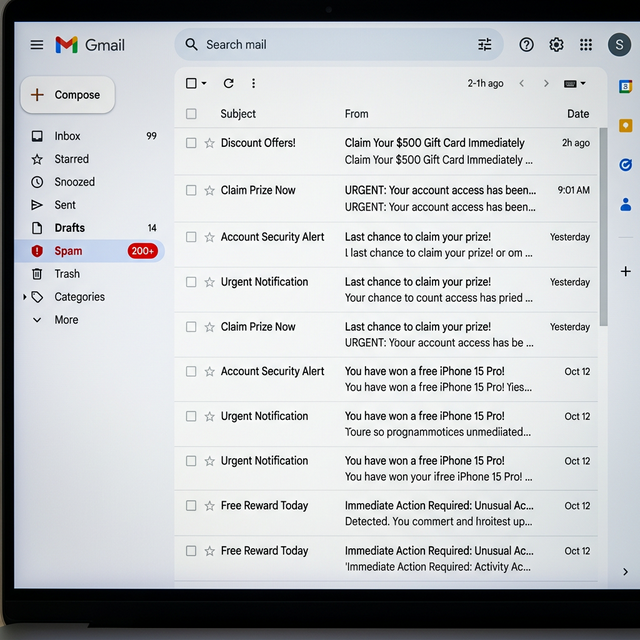
Gmail's spam filter is one of the most intelligent and aggressive in the world. Every day, Google's algorithms block billions of spam messages using a multi-layered system that combines machine learning, sender reputation analysis, content scoring, and real-time behavioral signals. If your bulk emails are landing in spam, it is not random — there is a specific technical or behavioral reason, and it can be fixed.
This guide breaks down exactly how Gmail's spam filter works, what triggers it, and — most importantly — the proven techniques that can improve your odds of landing in the Primary inbox. You still control list quality, authentication, and send path; no tool can guarantee placement.
How Gmail's Spam Filter Actually Works
Before you can bypass something, you need to understand it. Gmail uses three layers of filtering that each email must pass through before reaching the inbox.
Layer 1: Authentication Check
The very first gate is technical. Gmail checks whether your email is properly authenticated using three DNS records:
- SPF (Sender Policy Framework): Verifies that the IP address sending the email is authorized by your domain's DNS.
- DKIM (DomainKeys Identified Mail): A cryptographic signature embedded in the email header that proves the email was not altered in transit.
- DMARC (Domain-based Message Authentication, Reporting and Conformance): Specifies what Gmail should do if SPF or DKIM fails — quarantine it, reject it, or deliver it anyway.
Source: Google Email Sender Guidelines — As of February 2026, all senders sending more than 5,000 emails/day to Gmail accounts MUST have SPF, DKIM, and DMARC configured. Failure to comply results in automatic spam placement or rejection.
If your email fails authentication, it does not even make it to layer 2. It goes directly to spam or gets rejected entirely.
Layer 2: Sender Reputation Score
Gmail assigns every sending domain and IP address a sender reputation score. This is a continuously updated score based on:
- Complaint rate: What percentage of your recipients click "Report Spam"? Google expects this to stay below 0.10% consistently.
- Engagement rate: Do recipients open your emails? Reply? Move them from spam to inbox? Positive engagement improves your score.
- Bounce rate: High hard bounce rates (invalid addresses) signal low-quality list hygiene.
- Sending history: A new domain that suddenly sends 10,000 emails is inherently suspicious.
Layer 3: Content Analysis
Even if you pass authentication and have a good sender score, Gmail's AI analyzes the actual content of your email. It looks at:
- Subject line patterns (excessive capitalization, question marks, exclamation marks)
- Spam trigger words ("FREE", "GUARANTEED", "ACT NOW", "MAKE MONEY")
- HTML structure (excessive images with little text, broken HTML, too many links)
- Link domains (if you link to a domain with a bad reputation, your email is penalized)
- Unsubscribe mechanism (absence of an unsubscribe option is a major red flag)
Watch: How Gmail's Spam Filter Works (Deep Dive)
The 8 Proven Techniques to Bypass Gmail's Spam Filter
Technique 1: Configure SPF, DKIM, and DMARC Correctly
This is non-negotiable. Without these three records, nothing else matters. Here is exactly what you need:
SPF record example (add to your domain's DNS as a TXT record): v=spf1 include:_spf.google.com ~all
DKIM: Enable DKIM signing in your Google Workspace admin panel under Apps > Google Workspace > Gmail > Authenticate Email.
DMARC record example: v=DMARC1; p=quarantine; rua=mailto:dmarc@yourdomain.com
Start with p=quarantine and move to p=reject once you have confirmed all your email streams are DKIM-signed.
Verification tool: Use MXToolbox DMARC Check to verify your records are correctly configured. A green result across all three checks means you pass Layer 1.
Technique 2: Warm Up Your Sending Domain
Never start sending high volumes from a brand-new domain. Google has no history for new domains, so any sudden high-volume send triggers immediate suspicion.
The right warm-up schedule:
- Week 1: 20–30 emails per day to your most engaged contacts
- Week 2: 50–75 per day
- Week 3: 150–200 per day
- Week 4: 300–400 per day
- Month 2+: Gradually scale to your target volume
This process teaches Gmail's algorithms that your domain sends emails that real people want to receive.
Real example: A Nairobi-based SaaS startup followed this exact warm-up schedule — ramping campaign volume gradually from a connected Google Workspace inbox, not blasting a new domain on day one. After 30 days, Google Postmaster Tools showed a healthier domain reputation and inbox placement improved. MailShrine does not run a proprietary warm-up network; the sender still owns the ramp.
Technique 3: Keep Your Complaint Rate Below 0.10%
Google made this explicit in their 2026 bulk sender guidelines. A complaint rate above 0.10% puts your sender score at risk. Above 0.30% triggers active filtering.
How to keep complaint rates low:
- Only email people who genuinely opted in to hear from you
- Include a clear, one-click unsubscribe link in every email (required by Google since February 2024)
- Send relevant, timely content — the more relevant your email, the less likely it is to be marked as spam
- Suppress unsubscribers immediately — continuing to email people who have unsubscribed is both illegal and reputation-destroying
Technique 4: Clean Your Email List Before Every Send
Invalid email addresses (ones that bounce) damage your sender reputation. Before every campaign, verify your list using a real-time email validation tool.
- ZeroBounce — validates addresses and identifies spam traps
- NeverBounce — real-time verification API
- Hunter.io Email Verifier — good for small lists
A clean list (less than 2% bounce rate) keeps your sender score healthy. MailShrine Email Marketing does not currently include native list sanitization — use a dedicated verifier, then upload the cleaned CSV.
Technique 5: Write Emails That Look Human
Gmail's AI is specifically trained to detect automated, templated bulk emails. The more your email reads like a genuine personal message, the better it performs.
Avoid:
- All-caps subject lines: "YOUR INVITATION IS WAITING!!!"
- Overuse of emojis in subject lines
- Heavy HTML with lots of images and minimal text
- Link-heavy emails (more than 3 links in a short email)
Do instead:
- Plain-text or minimal HTML emails for cold outreach
- Personalize with the recipient's first name, company, or specific reference
- One clear CTA instead of multiple competing links
- Write in conversational, human tone
Technique 6: Use a Custom Sending Domain (Not Gmail.com)
Sending bulk email from a personal @gmail.com address applies reputation pressure to your personal inbox. Instead, use a custom domain (e.g., outreach@yourcompany.com) with Google Workspace.
This separates your outreach reputation from your personal inbox reputation, and gives you full control over SPF, DKIM, and DMARC records.
Pro tip: Use a subdomain specifically for outreach (e.g., mail.yourcompany.com) to isolate your outreach sending reputation from your main domain reputation.
Technique 7: Leverage Positive Engagement Signals
Gmail's algorithm is fundamentally reward-based. The more recipients engage with your emails (open, reply, click), the better your score becomes. Strategically engineer engagement:
- Send your first email to your highest-engagement contacts to build early positive signals
- Ask a simple, open-ended question to encourage replies ("Does this resonate with your situation?")
- Follow up warmly with people who opened but did not reply — they already showed interest
Technique 8: Monitor Your Sender Score Continuously
Use Google Postmaster Tools — Google's own free dashboard for monitoring your domain reputation with Gmail.
Go to Google Postmaster Tools, verify your domain, and you will see:
- Domain reputation (High / Medium / Low / Bad)
- IP reputation
- Spam rate
- Authentication rates (SPF, DKIM, DMARC pass rates)
- Delivery errors
If your domain reputation shows as "Low" or "Bad" in Postmaster Tools, stop all email sending immediately. Do not try to "push through" — this will make it worse. Let the account rest for 2–3 weeks while sending only to people who directly request communication.
Watch: Setting Up Google Postmaster Tools
What to Do If Your Emails Are Already in Spam
If your current campaigns are hitting spam, here is the recovery protocol:
- Stop all bulk sends immediately — sending more spam only deepens the penalty
- Run MXToolbox and Google Postmaster Tools — identify the specific failure point
- Fix authentication — confirm SPF, DKIM, and DMARC are all passing
- Purge your list — remove all bounced, unsubscribed, and inactive addresses
- Send a re-permission campaign to your best contacts — ask them to actively confirm they want to hear from you, and ask them to move your email to Primary inbox if it landed elsewhere
- Gradually rebuild — start from 20–30 emails/day and warm up again
Most accounts can recover their reputation within 2–4 weeks with consistent positive engagement signals.
How MailShrine Email Marketing Fits This Workflow
Manually managing Gmail compliance is still your job as the sender. MailShrine Email Marketing is a credit-based campaign tool (1 credit = 1 email) that can send from a connected Gmail, Microsoft, Yahoo, or Custom SMTP inbox, or from MailShrine Cloud.
What you can do in MailShrine today:
- Compose, schedule, and send list-based campaigns
- Upload contacts via CSV / Excel — stored contacts do not raise the bill
- Include unsubscribe / one-click opt-out and suppression
- Choose the send path (your inbox or Cloud) that matches the list you are mailing
What MailShrine does not currently do: run a proprietary warm-up network, natively sanitize lists, or guarantee Primary-inbox placement. Ramp volume yourself, verify lists with a third-party tool, and keep complaint rates low.
Frequently Asked Questions
Can I use Gmail's native send to send 1,000 emails at once?
No. Gmail's bulk BCC approach triggers immediate spam detection. Even if it "sends", the vast majority of recipients will receive it in their spam folder or not at all.
Does using an image-heavy email template hurt Gmail deliverability?
Yes. A high image-to-text ratio is a known spam signal. Plain-text or minimal-HTML emails consistently outperform rich-design emails for inbox placement in cold outreach.
How long does it take to recover a spam-flagged domain?
Typically 2–6 weeks, depending on the severity of the flag and how consistently you rebuild with positive engagement signals. In extreme cases (domains with "Bad" reputation in Postmaster Tools), you may need to start with a new sending domain.
Does Gmail treat all bulk senders the same?
No. Google's algorithms distinguish between opt-in newsletter senders, cold outreach senders, and transactional email senders. Each is evaluated differently. Cold outreach senders face the most scrutiny and need the strongest technical setup.
References and Further Reading
- Google Email Sender Guidelines
- Google Postmaster Tools
- MXToolbox DMARC Checker
- ZeroBounce Email Validation
- NeverBounce List Verification
- Litmus Email Deliverability Report 2026
- GlockApps Inbox Placement Tests
Written by Chioma A., Independent Deliverability Expert. Chioma has helped over 60 African and UK-based businesses recover from spam penalties and rebuild strong, lasting sender reputations.